---
title: "Notify Customers when Products are Out of Stock"
slug: "how-to-notify-customers-when-products-are-out-of-stock"
url: "https://avada.io/blog/how-to-notify-customers-when-products-are-out-of-stock/"
kind: "post"
author: "Sam Nguyen"
author_url: "https://avada.io/authors/sam/"
published_at: "2019-03-31T00:00:00+07:00"
updated_at: "2026-04-08T09:01:23+07:00"
description: "Discover effective ways to notify customers when products are out of stock in Shopify with our detailed guide featuring app and code solutions."
categories: ["Shopify Dev Docs"]
---
# Notify Customers when Products are Out of Stock
One of the most useful characteristics of Shopify is to let customers know the quantity of an item. Buyers are informed the right number of products left or sold out, hence they can make purchasing decision quickly or turn on the notification when new items arrive. As a result, the tutorial will instruct you to **notify customers when products are out of stock**.
***Related Posts:***
- [How to enable order notes in Shopify](https://avada.io/blog/how-to-enable-order-notes-in-shopify)
- [How to insert a Buy this link to a blog post in Shopify](https://avada.io/blog/insert-a-buy-this-link-to-a-blog-post)
- How to insert a “Reorder” link in Shopify
### Attention
The tutorial is an advanced level and requires knowledge of web design and languages such as HTML, CSS, JavaScript, and Liquid. If you encounter difficulties, you should hire a Shopify expert to assist you in customizing the activation of product notification.
### How to notify customers when products are out of stock on Desktop
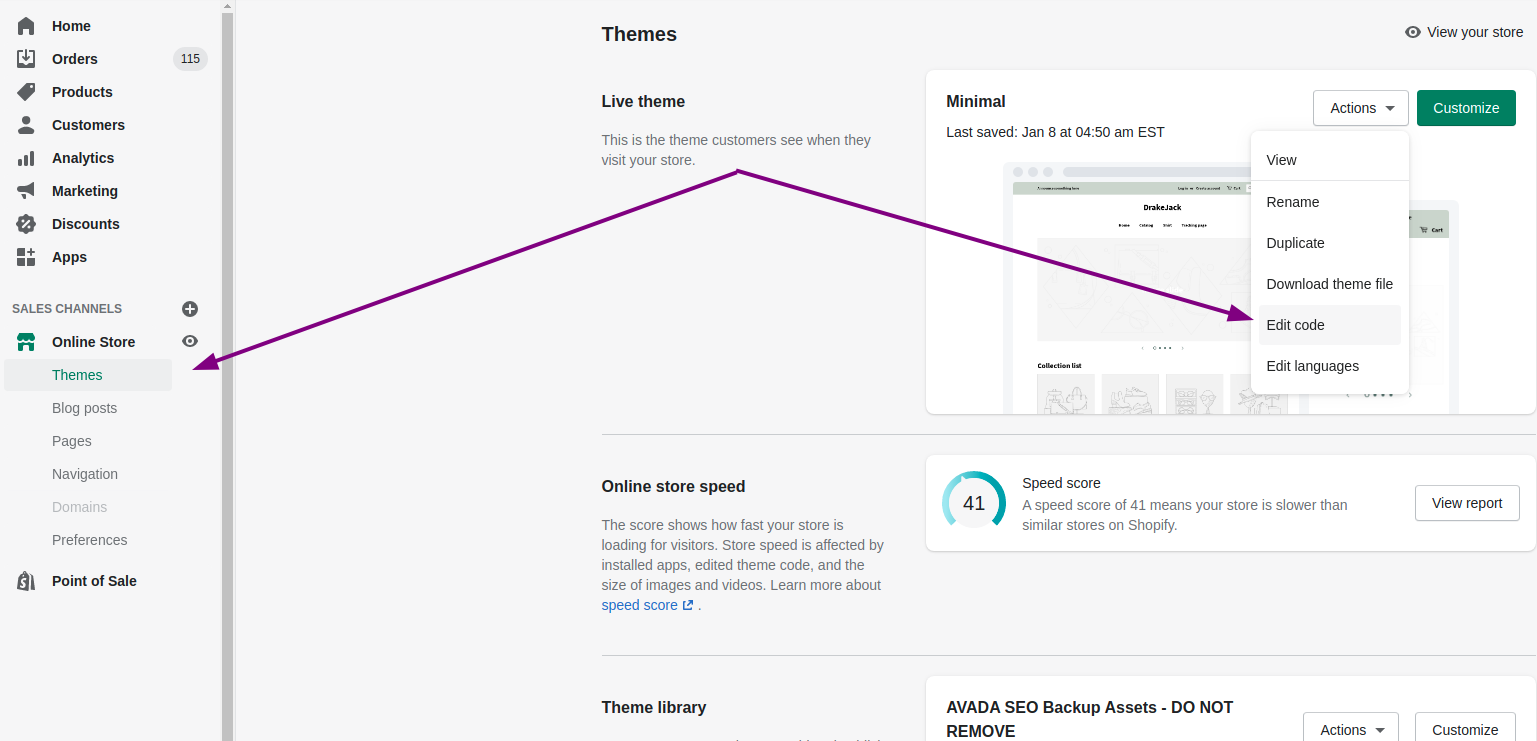
- Step 1: You access Shopify admin, click Online Store and go to Themes.
- Step 2: Find the themes that you want to edit, then press Actions then Edit Code.
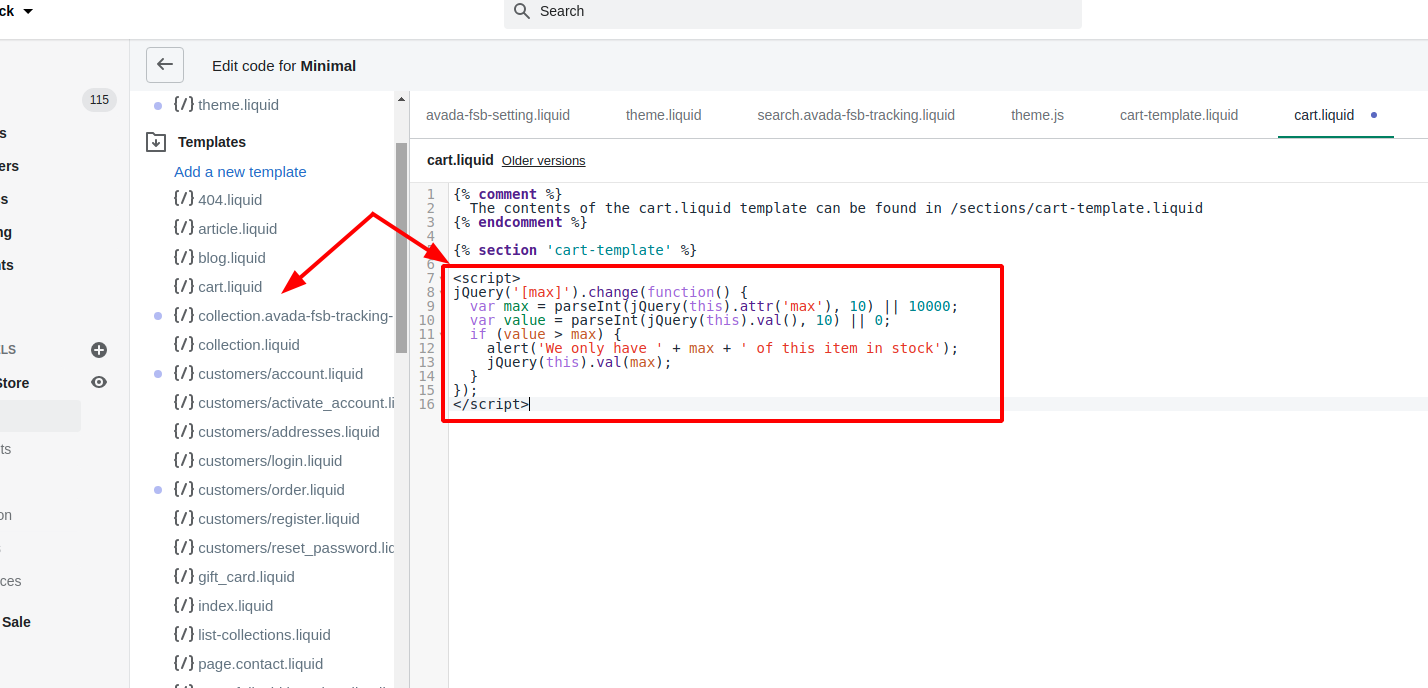
- Step 3: Open `cart.liquid` in the online code editor under the Template file.
- Step 4: Add the following code at the bottom of the `cart.liquid` file
```
```
- Step 5: Look for the following code:
```
value="{{ item.quantity }}"
```
- Step 6: Add this line after `value= “”`
```
{% unless item.variant.inventory_management == blank or item.variant.inventory_policy == 'continue' %} max="{{ item.variant.inventory_quantity }}" {% endunless %}
```
Then it turns to:
```
```
- Step 7: Click Save and you turn on the notification on Desktop successfully.
### Conclusion
Briefly, the tutorial aims to help online store managers to **notify customers when products are out-of-stock.** The notification will create a more comfortable shopping experience on your store. We hope that the instruction is useful and you will welcome more shoppers. If you have any comments or feedback, let us know. For further information, check out our [guides for Shopify developers.](https://avada.io/category/shopify-devdocs/)